
WOPBLOCKSTUDIO / NEWS
· WopBlockStudio
Configure server.properties — now on WopBlockStudio
Choose a Minecraft Java version, edit settings, import your configuration and download a ready file.
Open Configure server.properties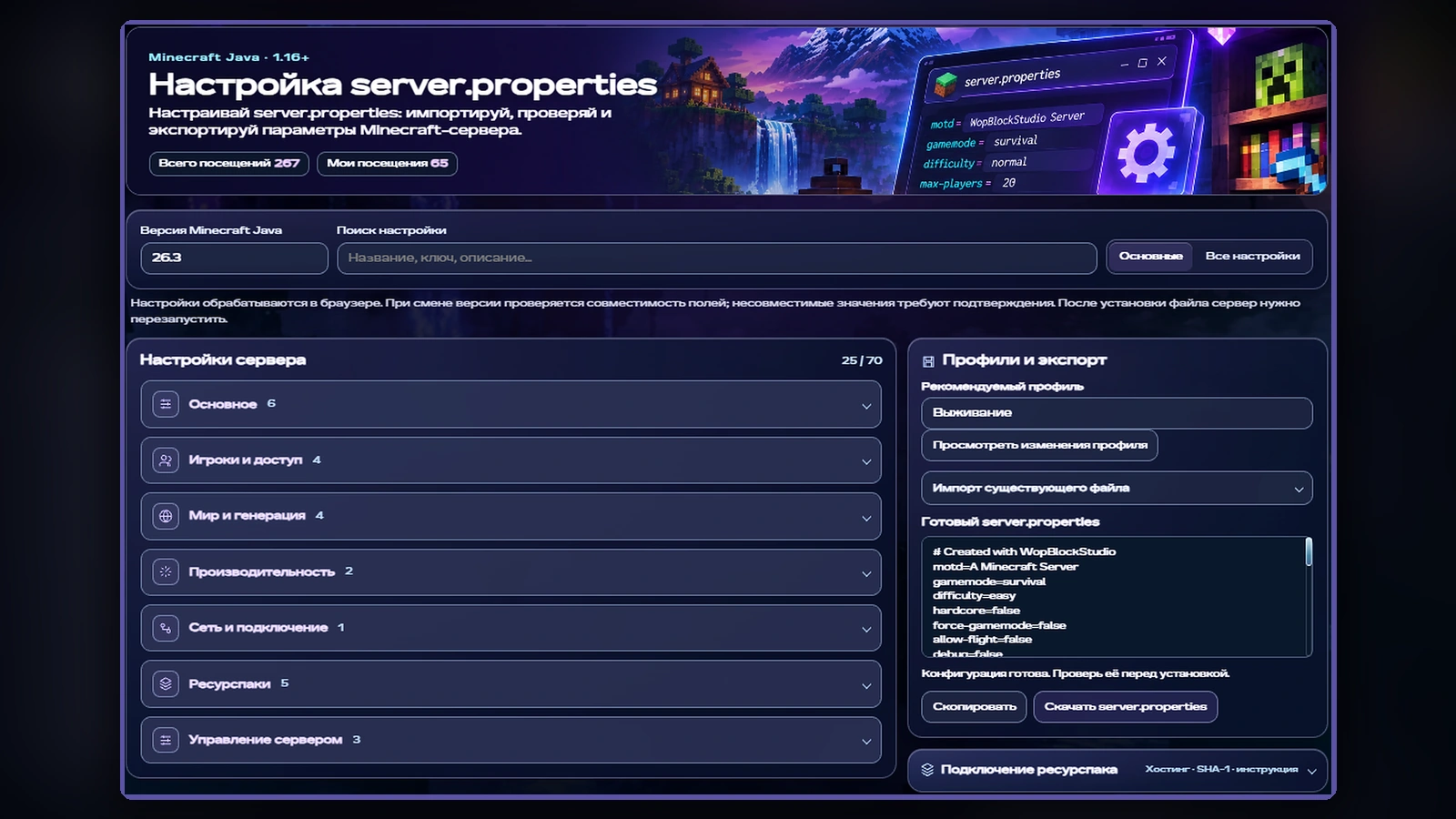
Your server settings, organized in one place
Instead of scrolling through an unsorted text file, you'll find settings arranged into practical groups: Basics, Players & access, World & generation, Performance, Network, Resource packs, and Server management.
Expand the section you need, change a value, and check the resulting file in the neighboring preview. Search by property key, name, or description — for example, `motd`, `gamemode`, or `max-players`. Helpful explanations make it easier to understand what each setting does before applying it.
Minecraft Java version choices from 1.16 to 26.3
Minecraft Java releases don't all use exactly the same properties. The editor therefore offers version choices from 1.16 through 26.3 and checks compatibility when you switch versions.
That doesn't mean a configuration automatically works on every server. Always confirm your selected Minecraft version, review any compatibility warnings, and check the server software you're actually running — especially when moving between distant releases.
Import an existing server.properties instead of starting over
Already have a configured server? Expand the import section, paste the contents of your current `server.properties`, and apply it. The form populates from that text and the updated configuration appears in the preview.
This lets you make targeted changes without re-entering everything by hand. The editor is designed to retain unknown keys rather than silently discard them, while incompatible properties require review before exporting.
Tip: keep a separate backup of your working `server.properties` before making changes.
Presets offer a helpful starting point
The Presets & export panel lets you choose a recommended starting profile. For example, you can select Survival, inspect the proposed changes, and adjust the values for your own server.
A preset isn't a one-click guarantee that every setting is right. Treat it as a starting configuration, then review player limits, access rules, and performance options based on your server and community.
Six useful properties to check first
When setting up a small Minecraft Java server, these are some of the first settings worth reviewing:
For example, a small configuration might include these lines:
This is an illustrative selection of properties, not a complete configuration for every Minecraft server. The remaining settings must match your own environment.
- `motd` — The server description shown in the multiplayer list.
- `max-players` — The maximum number of connected players.
- `gamemode` — Default game mode.
- `difficulty` — World difficulty.
- `white-list` — Whether players need to be on the allowlist.
- `online-mode` — Account verification during connection. `true` is normally recommended for public servers.
- motd=My Minecraft Server
- max-players=20
- gamemode=survival
- difficulty=normal
- white-list=false
- online-mode=true
Preview the exact configuration before exporting
The Generated server.properties panel shows the settings as ordinary text before you download anything. It's a useful last checkpoint: did you choose the right values, keep the properties you still need, and address any version warnings?
The generated file includes a small comment, `# Created with WopBlockStudio`, which identifies where it was prepared. It doesn't replace or interfere with a Minecraft configuration key.
Set up a configuration in five steps
The editor does not connect to your running server or restart it automatically. Installing the file remains the server owner's responsibility.
- Open Configure server.properties and select your Minecraft Java release.
- Import an existing file if you have one; otherwise start from the current values or a recommended preset.
- Search for settings, edit their values, and review help text and compatibility messages.
- Inspect Generated server.properties, then copy the result or download the file.
- Back up the original file on your Minecraft server, install the new `server.properties`, and restart the server as required.
Compatibility and safe configuration habits
Some settings affect security, player access, performance, or world generation. Don't disable account verification just to make connecting easier, and choose view and simulation distances with your hosting resources in mind.
If a version change exposes an incompatible key, review it rather than removing it without understanding its purpose. Remember that Minecraft server software and plugins may have additional configuration files that aren't part of `server.properties`.
What this tool does — and doesn't — cover
The editor targets Minecraft Java Edition. It isn't a Bedrock configuration generator and doesn't replace the configuration tools for Paper, Purpur, Velocity, LuckPerms, EssentialsX, or other plugins and proxies.
The editing process runs in your browser. That keeps the workflow straightforward, but you still need to review the generated file before applying it to a real server. Make backups and test changes carefully.
Try the editor and help us improve it
WopBlockStudio is built for players, server owners, builders, and people who enjoy figuring out how Minecraft works. The goal here isn't another flashy page with empty controls: it's a practical editor that saves time and helps avoid accidental mistakes in a configuration file.
Open Configure server.properties — select a version, customize settings, and download your file.
If you spot an unclear description, a missing property, or a frustrating step, let the WopBlockStudio team know through the project's contact channels. Feedback from real use helps guide the next improvements.
Frequently asked questions
- Which Minecraft versions can I choose? — The editor offers Minecraft Java version choices from 1.16 to 26.3. Available properties depend on the selected release.
- Can I edit my current server.properties? — Yes. Paste its contents into the import section, apply them, and edit the resulting settings.
- Will the website apply the changes to my server automatically? — No. You'll need to install the downloaded file on your own server and restart it when required.
- Does it work with Bedrock or plugin configuration files? — No. This tool is for Minecraft Java `server.properties`. Bedrock servers, plugins, and server software can use separate configuration formats.
- What if a property is reported as incompatible? — Check the selected Minecraft version, the property's purpose, and the editor's warning. Don't discard settings blindly; preserve your original file until you've reviewed and exported the configuration.
Configure your server in WopBlockStudio
Choose a Minecraft Java version, review the generated configuration and download your server.properties.